
Companial
Overview
Companial is a Microsoft CSP indirect provider (distributor). If you buy your Microsoft and software subscriptions through Companial rather than directly from Microsoft, the Companial integration lets Work 365 keep your customers, subscriptions, and invoices in sync with Companial automatically — and lets you manage subscriptions at Companial without leaving Work 365.
The integration works in two directions:
- Provider → Work 365 (P2T): Records that live at Companial (customers, subscriptions, GDAP relationships, agreements, catalog, invoices) are pulled into Work 365 and kept up to date.
- Work 365 → Provider (T2P): Actions you take in Work 365 — creating a customer, changing seat counts, suspending or cancelling a subscription — are sent to Companial and applied there.
Everything flows through the same sync engine Work 365 uses for other providers, so the experience is consistent whether you also use Microsoft Partner Center, Synnex/TD SYNNEX (Stellr), Pax8, or Ingram.
Note on availability: The capabilities below reflect Work 365's standard provider feature set. A few specific actions may not be supported if Companial's API does not expose them. Where Work 365 cannot offer an action through Companial, it is marked Not Applicable in the product with a documented reason, and the action will be unavailable on the relevant form.
Set up
You'll need your Companial API credentials (Companial provides these) and permission to manage providers in Work 365.
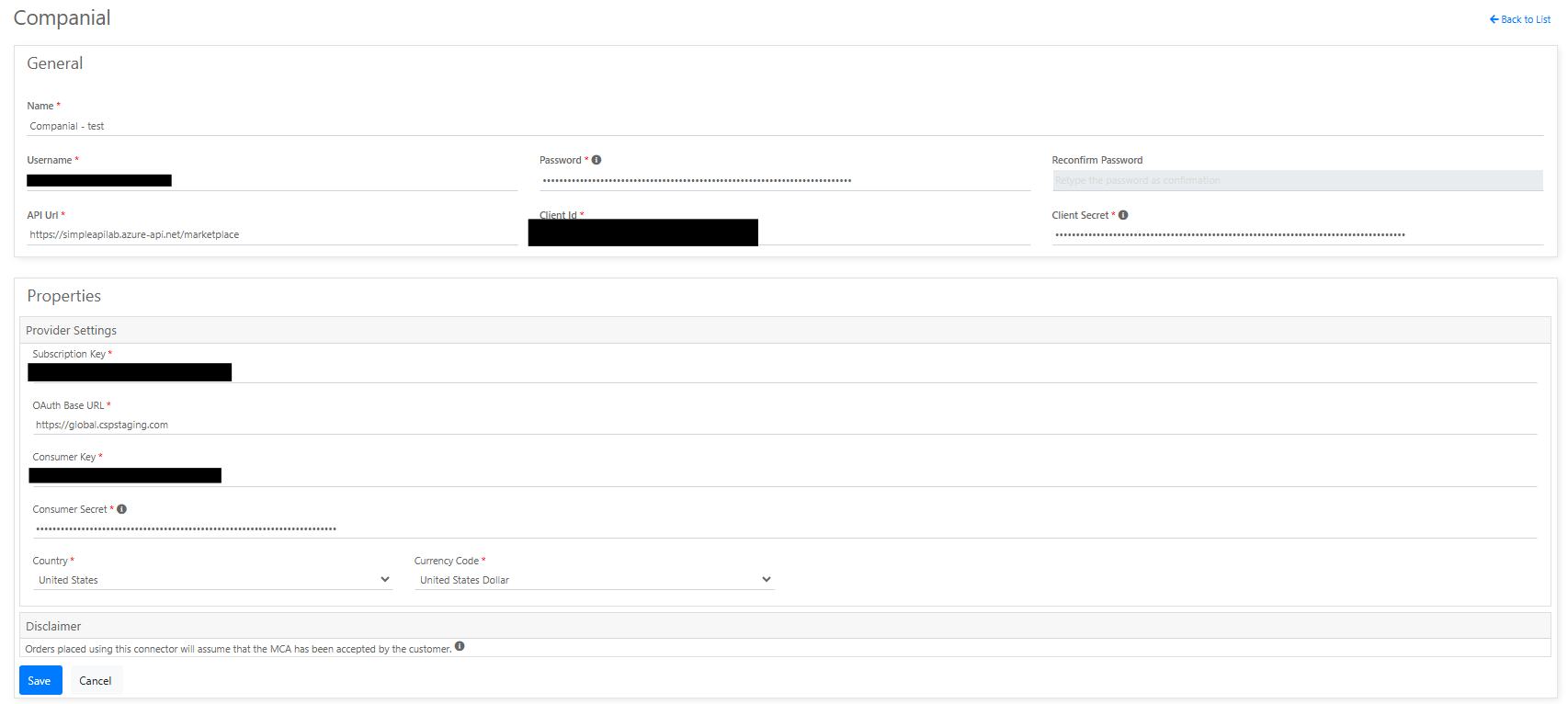
- In Work 365, go to your Provider settings and add Companial.
- Enter the login URL, Application ID, Application Secret, username, and password supplied by Companial.
- Save. Work 365 will test the connection.
- Once the connection is confirmed, run your first sync to pull your customers in from Companial.
After that, syncing happens automatically on a schedule — you don't need to start it by hand.
What you can do today
Manage your customers
- Your Companial customers appear in Work 365 automatically, and stay up to date.
- You can create a new customer at Companial directly from Work 365.
- When you set up a customer, Work 365 checks with Companial first and only saves it once Companial accepts it — so the two systems always agree.
Manage your license subscriptions
Your seat-based Microsoft and software subscriptions (such as Microsoft 365 and Dynamics 365) appear in Work 365 and stay current. From the subscription in Work 365 you can:
- Add or remove seats
- Suspend a subscription
- Reactivate a suspended subscription
- Cancel a subscription
- Set renewal instructions (for example, auto-renew or cancel at renewal)
- Change the plan the subscription is on (transition)
Each change is sent to Companial and applied there. Work 365 confirms Companial accepted it before saving the change on your side.
Keeping an eye on sync
Work 365 makes it easy to see whether everything synced and to fix anything that didn't:
- A sync status is shown on your customer and subscription records, so problems are easy to spot.
- If a change to Companial doesn't go through, Work 365 shows a plain-language message explaining why, and gives you options to retry it, skip it, or correct the record.
- Work 365 also retries failed syncs automatically, and sends you a daily summary of anything still needing attention — so nothing gets missed.
Good to know
- You don't need to sync manually. Routine updates happen on a schedule. A single change you make is sent to Companial right away.
- Your changes are always confirmed with Companial first. If Companial rejects a change, Work 365 tells you rather than saving something that didn't actually happen.
- If something looks off, check the record's sync status for a clear explanation, then retry or reach out to your Work 365 support contact.
Note: Due to API limitations the Product explorer may timeout on occasion.
Updated 3 months ago