
Renewal Instructions
Overview
Renewal Instructions allow partners to schedule subscription changes to take effect directly at the point of renewal with Microsoft. Supported changes include quantity increases and reductions, product upgrades and downgrades, and term changes. This eliminates the need to manually intervene at renewal time and ensures changes are communicated to Microsoft ahead of the renewal date.
How It Works
Renewal Instructions are set in two ways within the Modify Subscription workflow or from the advanced tab in a subscription. When making a change with Effective = On Renewal, Work 365 schedules that instruction with Microsoft Partner Center to execute at the subscription's renewal date (No SLCL needed).
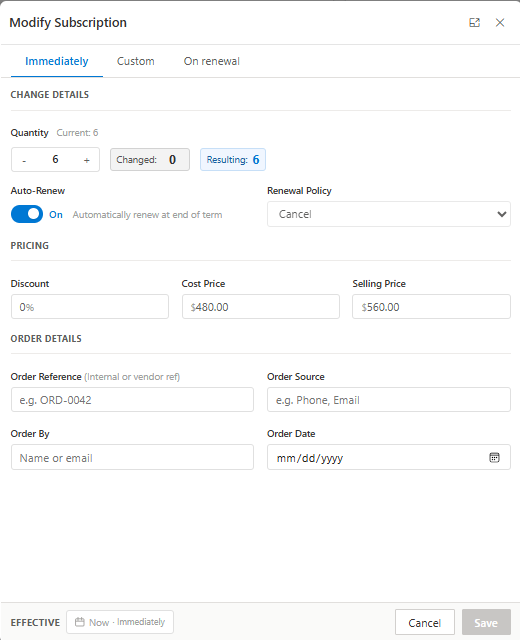
Basic renewal changes: Quantity increases, reductions, term changes and continuations are available in the standard Modify Subscription dialog.
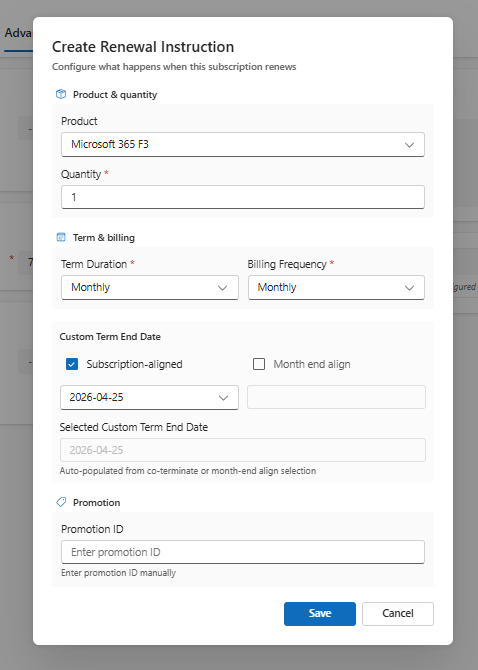
Advanced renewal changes: Product upgrades and product downgrades are only accessible through the Advanced tab of the subscription. These changes require selecting a different offer or term at the point of renewal and are surfaced separately to avoid accidental changes to the underlying product.
When you set the effective date to On Renewal, a Renewal Instruction panel captures the change details and submits them to Microsoft Partner Center to be applied at the subscription's next renewal date.
Renewal instructions that are set in Partner center will sync back into Work365. Only the latest created renewal instruction is considered.
Supported Scenarios
| Scenario | Where to Configure | Behavior |
|---|---|---|
| Quantity increase at renewal | Modify Subscription dialog | Quantity increase sent to Microsoft; applied at renewal date |
| No change at renewal | Modify Subscription dialog | Confirms current settings continue at renewal |
| Seat reduction at renewal | Modify Subscription dialog | Reduction scheduled with Microsoft; subject to 7-day window policy |
| Product upgrade at renewal | Subscription Advanced tab | Schedules a move to a higher-tier product at renewal |
| Product downgrade at renewal | Subscription Advanced tab | Schedules a move to a lower-tier product at renewal |
| Term change at renewal | Subscription Advanced tab | Schedules a commitment term change (e.g., 1 Year to 3 Years) at renewal |
Key Considerations
- Renewal Instructions are only available for Microsoft CSP subscriptions.
- The subscription's renewal date is used as the fixed effective date this cannot be overridden.
- Product upgrades and downgrades must be configured from the Advanced tab of the subscription they are not available in the standard Modify Subscription dialog.
- The 7-day cancellation window may affect when a reduction can be scheduled. Refer to Microsoft's current CSP policy for specific timing rules.
How to Set a Renewal Instruction
For quantity changes (increase, reduction, or no change) or term changes:
- Open the subscription you want to modify.
- In the Modify Subscription dialog, set Effective to On Renewal.
- The Renewal Instruction section will expand below the main panels.
- Enter the desired quantity, billing frequency, and term.
- Review the details and confirm. The instruction is sent to Microsoft and executes at the renewal date.
For product upgrades and downgrades
-
Open the subscription and navigate to the Advanced tab.
-
Select the renewal change type (upgrade, downgrade, or term change).
-
Choose the target product or term to apply at renewal.
-
Confirm the instruction. Work 365 sends it to Microsoft Partner Center to execute at the next renewal date.
-
Updated 6 months ago